Using Prompts
Prompts are pre-defined questions that guide reflection and discussion during evaluations. They help structure conversations between evaluators and evaluatees at key points in the evaluation process.
- Required prompts are sent automatically — 2.0 had the evaluator send every prompt by hand
- Prompts must be published before use
- Student Growth prompts follow the same model as every other prompt
- Prompts can be tagged with criteria, and the bank filtered by them
Where Prompts Are Used
| Prompt Type | When Used | Who Responds |
|---|---|---|
| Pre-Conference | Before an observation | Evaluatee |
| Post-Conference | After an observation | Evaluatee |
| Student Growth | Goal setting and achievement reporting | Evaluatee |
| Summative Reflection | End-of-year conference | Evaluatee |
Observation Conferences
Prompts support the observation cycle:
-
Pre-Conference prompts — Sent before the observation. The evaluatee answers questions about lesson planning, student needs, and instructional strategies. Responses help the evaluator prepare for the observation.
-
Post-Conference prompts — Sent after the observation. The evaluatee reflects on what happened during the lesson and what they might do differently. Responses inform the post-conference discussion.
The Prompt Workflow
Where: the Conference Prompts section at the bottom of an observation's Setup tab, with Pre-Conference and Post-Conference sub-tabs
Each sub-tab lists the prompts that will go to the evaluatee for that conference:
| Column | What it shows |
|---|---|
| Prompt | The question, in the order it will be asked |
| Source | Where it came from — District, School, or your own |
| Criteria | The criteria it is tagged with, or — if none. See Tagging Prompts with Criteria |
| Required | Whether it is required, and who required it |
| Status | Sent once the evaluatee can see it, New until then |
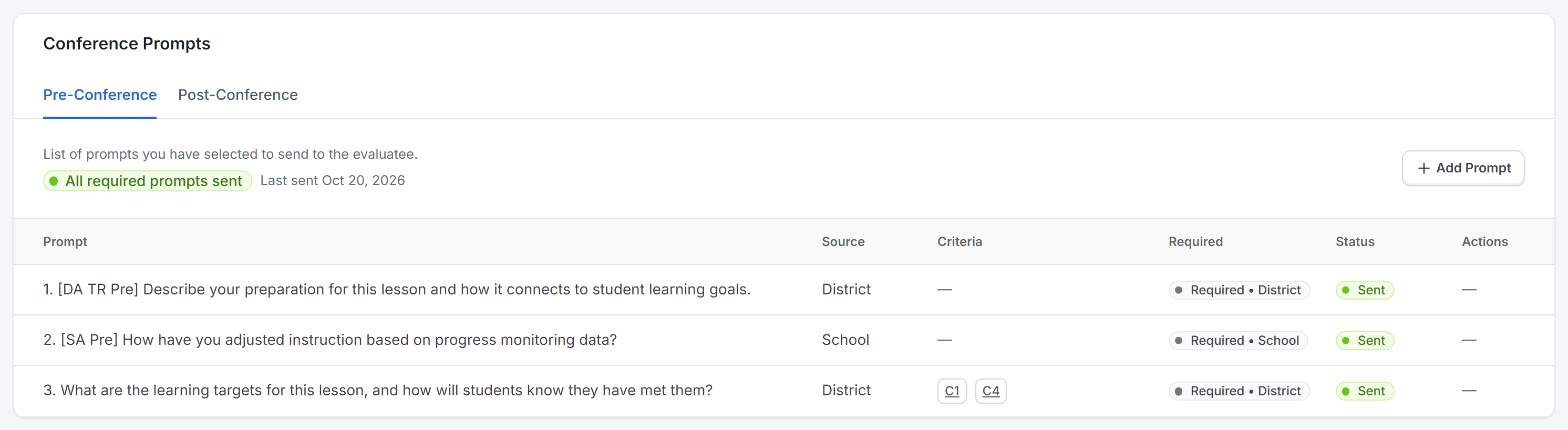
Above the list, Add Prompt opens a picker with two tabs:
- Browse Prompt Bank — everything available to you from the district, your school and your own bank. Tick the ones you want; a criterion strip at the top narrows the list. Prompts already on the conference show as Added.
- Write Custom — a local prompt, for this observation only.
You can also remove optional prompts you don't want to ask.
Required prompts are already with the evaluatee. They are released as soon as the evidence collection exists, so there is nothing to send and no waiting — they show as Sent.
Prompts you add yourself show as New and are not visible to the evaluatee until you click Send new Prompts. That button appears only while something is waiting; once everything has gone out the header reads All required prompts sent, with the date they were last sent. The evaluatee receives an email notification and sees the prompts in their Pre-Conference or Post-Conference tab.
The evaluatee writes responses and clicks Share Responses when finished. The evaluator receives an email notification and can then view the responses.
Prompts don't block the evaluation workflow — eVAL doesn't require prompts to be responded to before proceeding. The evaluator and evaluatee work out timing and expectations offline.
Conference Summaries
In addition to prompts, both parties can write conference summary notes at any time. Use the share checkbox to make your summary visible to the other party.
Student Growth Prompts
Student Growth prompts guide goal-setting and achievement reporting:
- Goal Setting prompts — Help evaluatees articulate student growth goals at the beginning of the year
- Achievement prompts — Help evaluatees document progress toward their goals at the end of the year
Student Growth prompts can be aligned to specific rubric components (C3, C6, C8 for teachers), which helps connect responses to the evaluation criteria.
Student Growth prompts work the same way as observation conference prompts — District Admins, School Admins, and evaluators can create prompts at their level, and evaluators can create local prompts for a specific evaluatee. Student Growth prompts also support three scopes (General, Goal, and Criterion Alignment) that place questions where they're most relevant. See Student Growth Goal Setting for details.
Summative Reflection Prompts
Summative reflection prompts support the end-of-year evaluation conference. They give evaluatees an opportunity to reflect on their practice before the final summative discussion.
The Prompt Bank
The Prompt Bank is where administrators and evaluators create and manage prompts. Each prompt type has its own section in the Prompt Bank.
Who Creates Prompts
| Role | What They Can Create | Who Sees Their Prompts |
|---|---|---|
| District Admin | All prompt types | Everyone in the district |
| School Admin | All prompt types | Evaluators at their school — but see How Prompts Layer for who that excludes |
| Evaluator | All prompt types | Only themselves |
Evaluators come in two kinds, and it matters for inheritance rather than for authoring: a school-based evaluator works within a school, a district-based one (District Teacher Evaluator, District Principal Evaluator) does not. Both can create their own prompts the same way.
How Prompts Layer
Prompts follow an additive pattern — prompts from every level above you combine with your own. If the district creates 3 pre-conference prompts and the school adds 2, an evaluator at that school sees all 5 to choose from, plus any of their own.
Which levels are "above you" depends on who you are evaluating, and this is the part that surprises people:
| You are | Prompts you see |
|---|---|
| A school-based evaluator evaluating teachers | Your own + your School Admin's + the District's |
| A district-based evaluator (District Teacher Evaluator, District Principal Evaluator) | Your own + the District's — no School Admin prompts |
| A principal evaluating principals | Your own + the District's — no School Admin prompts |
The reasoning in both exceptions is the same: there is no School Admin above you in that chain. District-evaluated staff are not evaluated at a school, so no school's prompt bank applies to them. And a principal evaluating other principals is the school admin, so there is no separate school bank to inherit from.
If you want a prompt to reach district-evaluated staff, it has to be a district prompt. A School Admin prompt will never reach them, however the school configures it.
Required vs Optional
When creating a prompt, administrators can mark it as required (auto-assigned):
| Type | Behavior |
|---|---|
| Required | Attached automatically, and released to the evaluatee straight away — the evaluator does not send it |
| Optional | Available in the prompt bank, but the evaluator must select it and then send it |
Required prompts ensure certain questions are always asked. For example, a district might require a prompt about differentiation strategies for pre-conferences.
This is the same for every prompt type — pre-conference, post-conference, student growth goal setting and achievement, and summative reflection.
Marking a prompt required is how a district guarantees its evaluatees are asked something. Because required prompts no longer wait on the evaluator, the evaluatee can begin as soon as their evidence collection exists — which matters most for student growth, where the teacher starts the work.
Tagging Prompts with Criteria
New in 3.0. A prompt can be tagged with the criteria it speaks to — one, several, or none at all. The tags appear as small pills beside the prompt in the Prompt Bank and in the Criteria column of a conference's prompt list.
Tags do two things:
- They say what a prompt is for. An evaluator scanning the bank can see that a prompt is about C3 without reading it closely.
- They filter the bank. When you click Add Prompt, a strip of criterion pills appears above the list. Select one to narrow the list to prompts carrying it; select several and you see prompts carrying any of them.
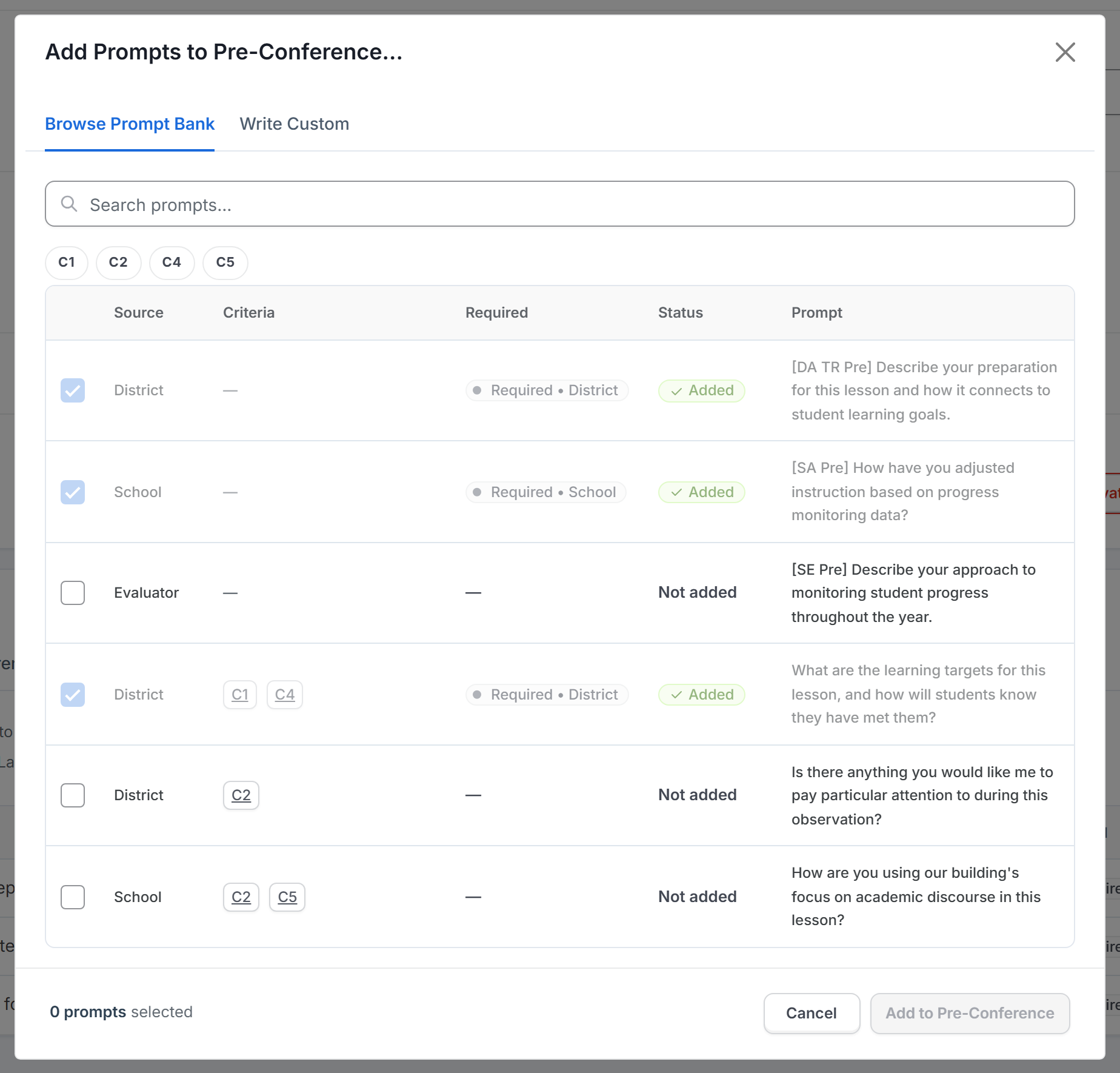
Tagging is optional. An untagged prompt behaves exactly as it always did — it simply shows — in the Criteria column and appears whatever the filter.
These tags attach a prompt to a criterion as a whole. Student Growth prompts can instead be aligned to the individual rubric components inside a criterion, which places the question against the specific row it supports. The two are separate mechanisms with different purposes — see Student Growth Prompts above.
Publishing Prompts
Prompts must be published before they're available:
- Required prompts won't be attached to anything until published
- Optional prompts won't be available for selection until published
This gives administrators time at the beginning of the school year to plan and prepare prompts before they go live.
Annual Review
Prompts require a fresh publish each school year. This encourages administrators to review their prompts and decide which ones to keep, update, or retire.
Retiring Prompts
Retiring a prompt takes it out of use without removing it from evaluations that already have it. From the Prompt Bank, open the prompt and mark it retired. After that:
- It is no longer attached to new evidence collections
- It no longer appears for selection in conferences
- Evaluations that already have it are unaffected, and responses already written are kept
Retiring is the right move mid-year, once a prompt may already be in use. At the beginning of the year, before anything has been sent, delete the prompts you no longer want rather than retiring them — that keeps the bank clean for the year ahead.
When to Set Up Prompts
Prepare prompts for the whole year at the start, rather than staging them by activity. Activities occur in this order:
| Order | Activity | Prompts Needed |
|---|---|---|
| 1 | Student Growth Goal Setting | Goal-setting prompts — goal approval carries a November deadline |
| 2 | Observations | Pre-conference and post-conference prompts, used throughout the year |
| 3 | Summative | Summative reflection prompts, used in spring |
New prompts can be added at any time. A prompt you mark required and publish mid-year attaches to evidence collections that are still in draft as well as to new ones, and reaches those evaluatees straight away — so it is worth being deliberate about publishing partway through a cycle. Collections that have already been submitted or locked are not changed.
Prompt Responses as Evidence
When evaluatees respond to prompts, their responses can become evidence in the evaluation:
- Observation prompts — Responses appear in the observation's Evidence View
- Student Growth prompts — Responses appear in Student Growth evidence
- Summative prompts — Responses appear in the Summative evaluation
After viewing responses, the evaluator can code text within them — selecting specific passages and aligning them to rubric components. This turns meaningful quotes from the evaluatee's reflection into evidence items.
Related Topics
- Start of Year Setup — Setting up the prompt bank
- How Settings Are Inherited — How prompts layer from district to school