Calibration Exercises
Calibration is practice scoring. An evaluator watches a recorded lesson, codes their evidence and scores the rubric exactly as they would a real observation — but against a lesson that has already been scored by experts. Comparing the two shows where an evaluator sits relative to that standard, and comparing across a district shows where its evaluators disagree with each other.
The lesson and its expert scores together are an anchor, published by OSPI. Nothing an evaluator does in a calibration exercise touches a real evaluation.
Where: Calibration in the sidebar — for District Administrators and evaluators alike. It appears only in a teacher work area, and only once the district has turned it on.
Before you can use it
Two things have to be true.
1. Your district has enabled the module. Calibration Exercises is optional and off by default. A District Administrator turns it on in Settings → Module Settings. It is configured once for the district and cannot be delegated to schools.
2. There are anchors for your framework. Anchors belong to an instructional framework, so a district only ever sees the ones matching its own.
eVAL 3.0 ships anchor content for CEL 5D+ and Marzano only. Districts on Danielson can turn the module on and will find an empty catalogue — OSPI has not yet published the new Danielson anchor scores.
Nothing is wrong with your setup. There is simply nothing to score against until that content exists.
For District Administrators
Calibration opens on three tabs: Exercises, Assignments and Report.
Exercises — the anchor catalogue
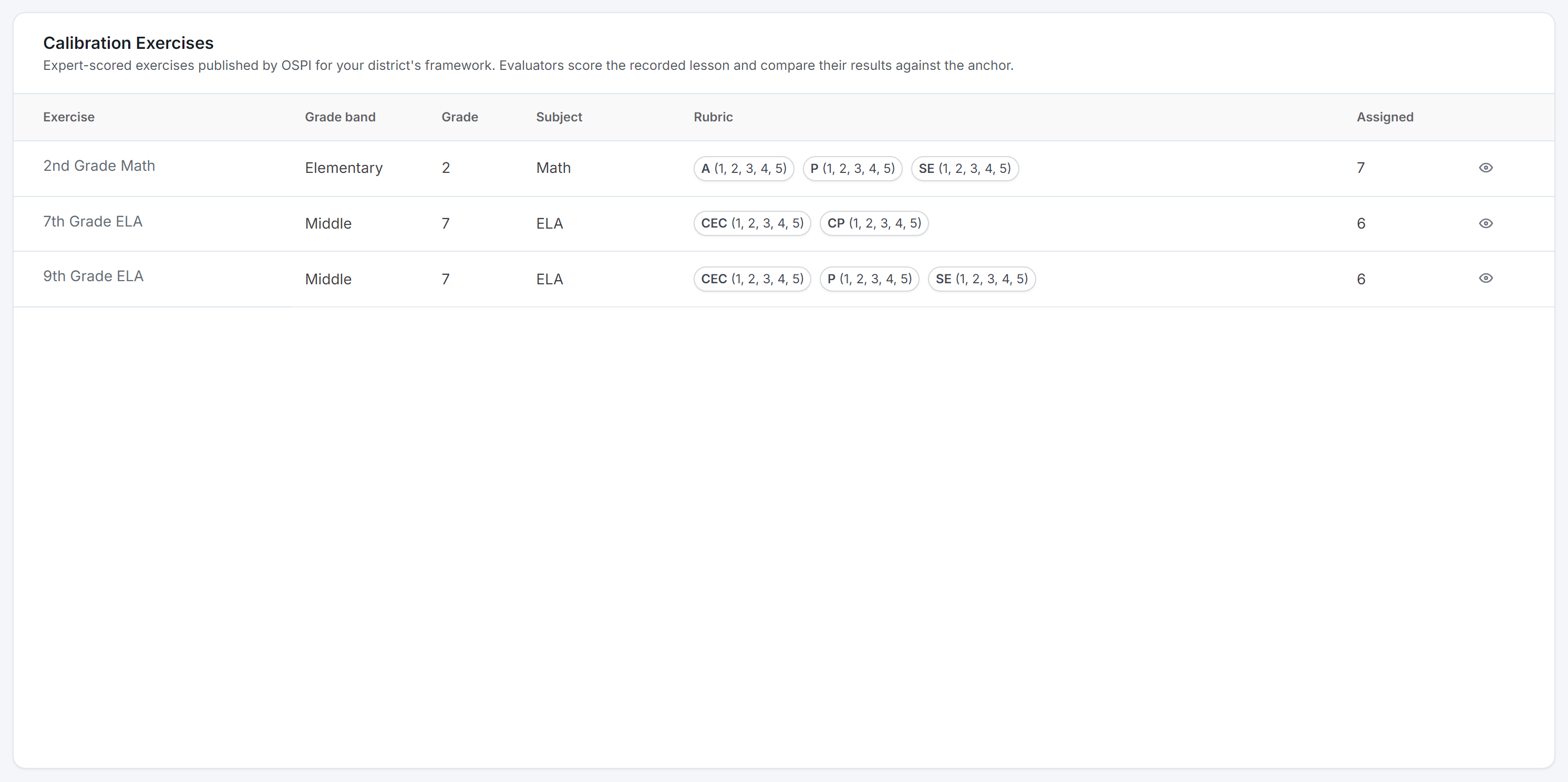
What OSPI has published for your framework. Each row is one recorded lesson: its grade band, grade and subject, the rubric rows it has been scored on, and how many evaluators it is currently assigned to.
This is a catalogue, not a list of things you created. You cannot add anchors; you choose which of them your evaluators will work through.
Assignments — who has which exercise
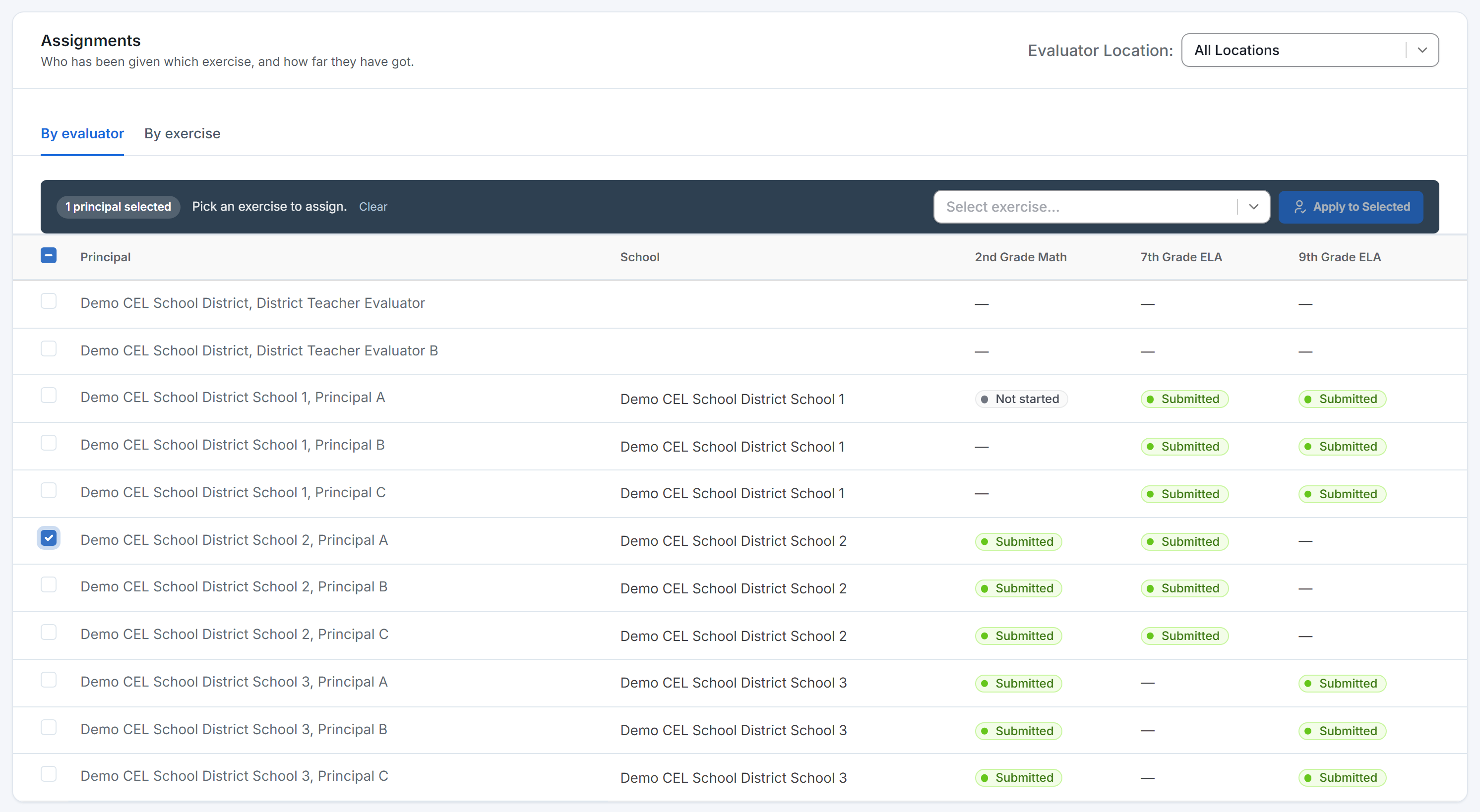
Who has been given which exercise, and how far they have got.
A grid of evaluators against exercises, each cell showing Not assigned, in progress, or Submitted. View it By evaluator or By exercise, and filter by location when you only care about one school.
To assign: tick the evaluators, choose an exercise in the bar that appears at the bottom, and click Apply to Selected. The bar tells you how many are selected and prompts for the exercise, so a part-finished assignment cannot be applied by accident.
A district setting, Assignment Type, decides this:
- District Assigned (default) — an administrator picks the exercise and the evaluators who will score it, as above.
- Self-Assigned — evaluators choose their own exercises, and there is no assignment screen.
The two are exclusive. Pick the one matching how your district runs calibration.
Report — how far evaluators sat from the anchor
How far the district's evaluators sat from the anchor, by rubric row.
Every score is classified by its distance from the anchor, not by whether it was high or low in absolute terms:
| Band | Meaning |
|---|---|
| Exact | Matches the anchor |
| Adjacent | One level above or below |
| Non-adjacent | Two or more levels above or below |
Summary gives the picture by rubric row. For each row it shows the anchor's own score, then how your evaluators' scores spread across the performance levels — as a count, a percentage, and that band. A row where most scores sit on the anchor is one your evaluators read the same way. A row with scores scattered two levels out is a conversation worth having.
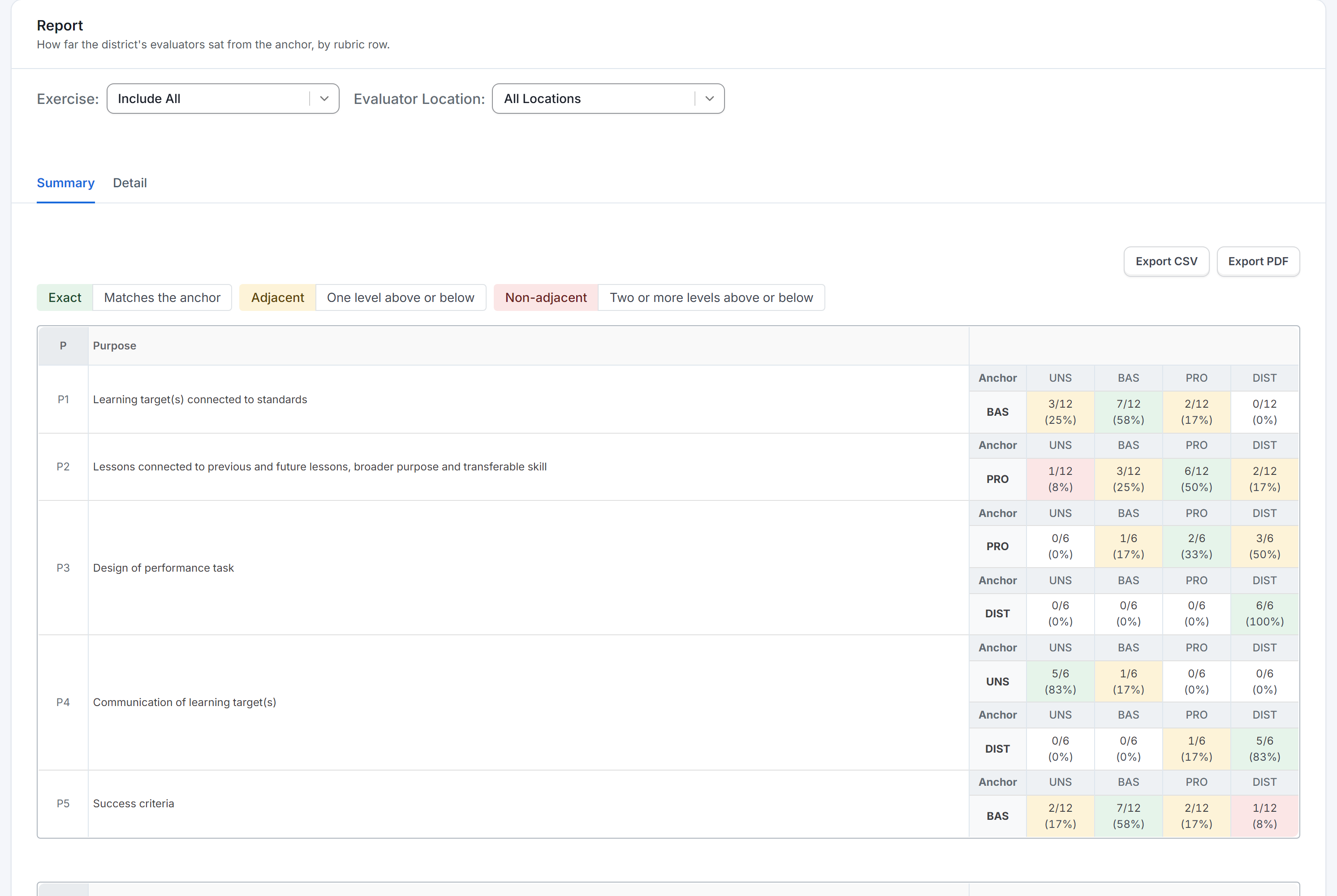
Detail breaks the same data down further, and both views filter by exercise and by location. Export CSV and Export PDF take the current view with you.
Non-adjacent scores are the ones to look at first, but a rubric row where the anchor scored at the very top or bottom cannot produce misses in both directions — there is no level beyond the end of the scale. A row with no high misses is not necessarily a row everyone agreed on.
For evaluators
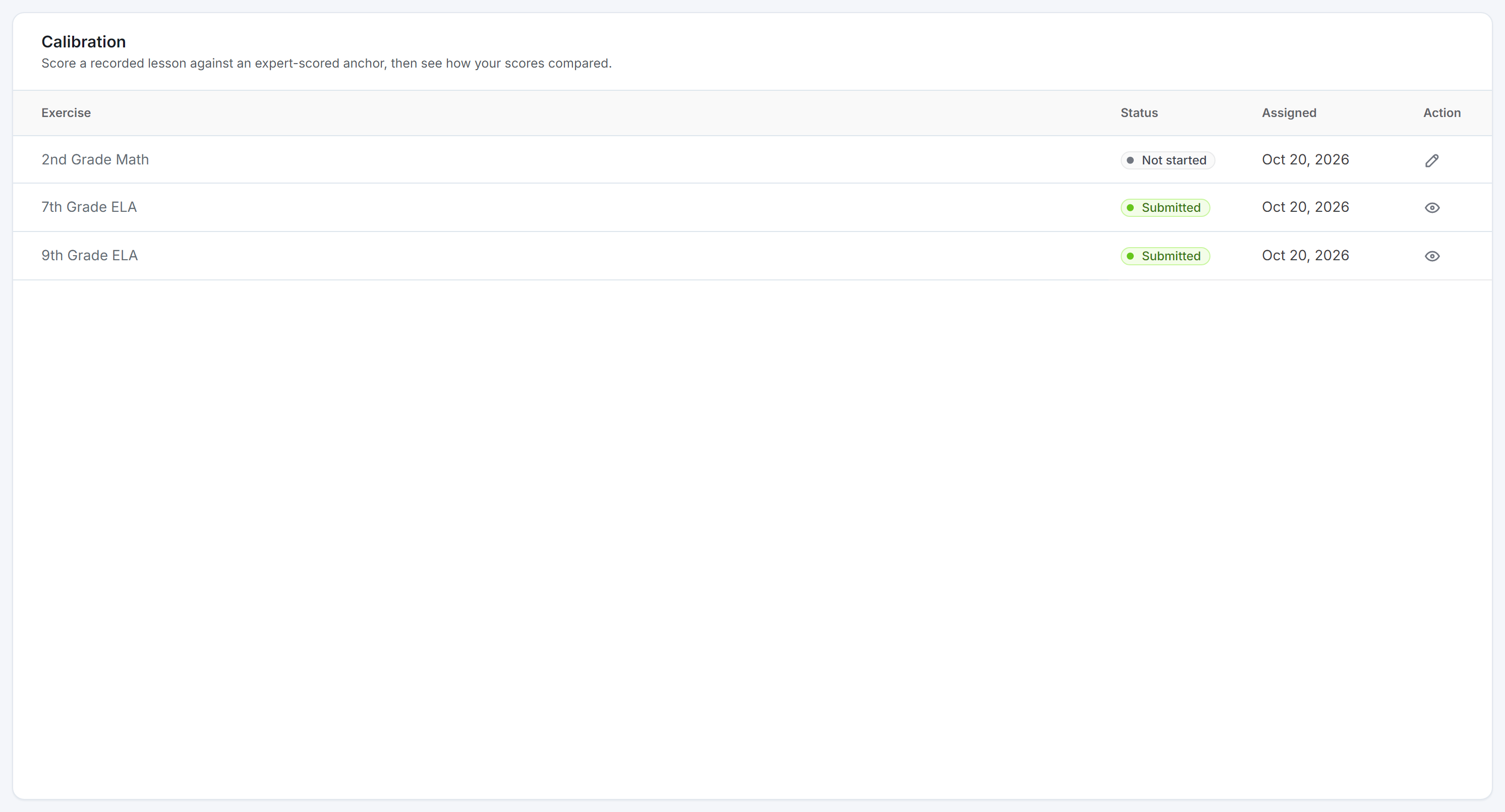
Calibration in your sidebar lists the exercises you have been given, each with its status — Not started, in progress or Submitted — and the date it was assigned.
Scoring an exercise
Open one and you get the same three-stage flow as a real observation, which is the point: you are practising the thing you actually do.
- Observe & Code — watch the lesson and take notes as you go, coding passages to rubric rows exactly as you would from a live observation. The usual shortcuts work:
Ctrl;inserts the date andCtrlShift;the time. - Evidence View — your coded evidence against the rubric, where you score each row.
- Results — once you submit, your scores beside the anchor's, row by row.
Submitting is what makes the exercise count towards your district's report, so finish the scoring before you submit.
What your results mean
Your results are shown in the same bands the district sees: Exact, Adjacent, Non-adjacent.
A spread of exact and adjacent scores is a normal, healthy result — calibration is not a test to be passed, and the anchor is not an opinion to be matched word for word. What repays attention is a rubric row where you sat two or more levels from the anchor, or a pattern of sitting consistently above or below it. Those are the rows where your reading of the rubric and the expert's part company, and they are the useful conversation to take to your district.
Related Topics
- How Workflows Work — the observation workflow calibration mirrors
- Coding Text as Evidence — the coding used in Observe & Code
- Scoring the Rubric — scoring in the Evidence View
- Modules and Settings — turning the module on