How Workflows Work in eVAL
Each evidence collection in eVAL follows a specific workflow that controls how content moves from draft to final state. Understanding these workflows helps you know what to expect and what actions are available at each step.
- A district can now choose Simple or Formal completion mode per evidence collection type
- 2.0 had no such setting — evaluators used Mark as Complete to skip review one report at a time
- The defaults match 2.0's behaviour, so changing nothing changes nothing
Workflow Patterns at a Glance
Evidence collections fall into two categories based on how they're managed:
Completion Mode Workflows
Most evidence collections use a completion mode that determines whether the other party must review and acknowledge before the collection is finalized:
| Mode | How It Works | Default For |
|---|---|---|
| Simple | The evaluator submits and the report is immediately archived and locked. The evaluatee is notified and can view it, but isn't part of the final submission. | Student Growth — Goal Setting & Goal Achievement |
| Formal | After submission, the evaluatee reviews and acknowledges the report within eVAL before it's locked, creating a documented sign-off for these formal steps of the evaluation. | Observations, Summative Evaluation |
District Flexibility
These are defaults — each district can configure the completion mode that works best for their evaluation process.
For example, some districts have evaluators and evaluatees meet in person to review reports together. In that case, a formal digital review may not be necessary, and Simple mode keeps the workflow efficient.
Other districts may prefer Formal mode for all evidence collections to ensure a documented acknowledgment trail.
eVAL provides this flexibility so districts can align the system with their existing processes rather than changing how they work.
Two practical notes:
- Completion mode is a district setting. Unlike most settings, schools cannot override it — whichever mode you choose applies across the district.
- The setting is worded as a negative. In Settings it reads "Do not require evaluatee report sign-off workflow within eVAL". Turning it on gives you Simple mode.
Creator-Managed Workflows
Self-Assessments and Artifacts don't use completion modes. The creator simply manages them directly:
- Work privately in Draft
- Share when ready
- Unlock to make revisions
- Re-share to update
| Evidence Collection | Owner | Contributes to Summative |
|---|---|---|
| Self-Assessment | Evaluatee | No (reflection tool only) |
| Artifacts | Either party | Yes (evidence) |
Common Workflow States
Most evidence collections use these states:
| State | What It Means |
|---|---|
| Draft | Work in progress. Can be edited freely. |
| Waiting for Review (Formal) | Submitted and waiting for the other party to review. |
| Viewed (Formal) | The other party has seen it but hasn't acknowledged yet. |
| Complete/Locked | Finalized. Archive created. Cannot be edited without an unlock request. |
| Shared | Visible to both parties (for simpler workflows). |
Detailed Workflows
The following diagram shows both the Simple and Formal workflow paths. This workflow applies to all evidence collections that use completion modes (Observations, Student Growth, Summative Evaluation).

Simple Workflow
In Simple mode, the evidence collection goes directly from Draft to Complete/Locked when submitted. There is no review step for the other party.
Draft → Complete/Locked
Example: Observation with Simple Mode enabled (observations default to Formal; a district can switch them to Simple)
- Evaluator creates the observation and works on it in Draft
- Evaluator clicks Submit Observation Report — the observation moves directly to Complete/Locked
- Evaluatee is notified and can view the completed observation
- If revisions are needed, the evaluator can Return to Draft on their own; the evaluatee can Request Unlock, which the evaluator approves
Formal Workflow
In Formal mode, the other party must review and acknowledge before the evidence collection is finalized.
State Details
Draft
- Owner creates and edits content
- Can share sections or send prompts to the other party
- Can be deleted in this state
Waiting for Review
- Owner has submitted (e.g., evaluator sends the Final Report)
- Other party can view the content
- Owner can Mark as Complete to bypass the review step — this requires a comment
- Owner can Return to Draft to make further changes — this requires a comment
Viewed
- Other party has viewed the content but hasn't acknowledged yet
- Other party can Acknowledge Report to finalize
- Owner can Mark as Complete to finalize without acknowledgment — this requires a comment
- Owner can Return to Draft to make further changes — this requires a comment
Complete/Locked
- Evidence collection is finalized and an archive is created
- Evidence flows to the Summative view
- The owner can Return to Draft on their own — no approval needed
- The other party can Request Unlock, giving a reason, which the owner approves or declines
Unlocking
- The other party requests unlock, giving a reason
- Other party approves or declines, or the requester cancels
- If approved, returns to Draft for revisions
- After revisions, owner re-submits
Special Cases
- Summative Evaluation: Supports Submit Incomplete Evaluation — see below.
- Student Growth: The evaluatee controls submission and the evaluator approves. The evaluator cannot edit goal content directly.
The Submission Checklist
A summative can't be submitted until everything it depends on is finished. The Submission checklist on the Final Report tab shows what is outstanding, and keeps Submit Summative Report disabled until it passes.
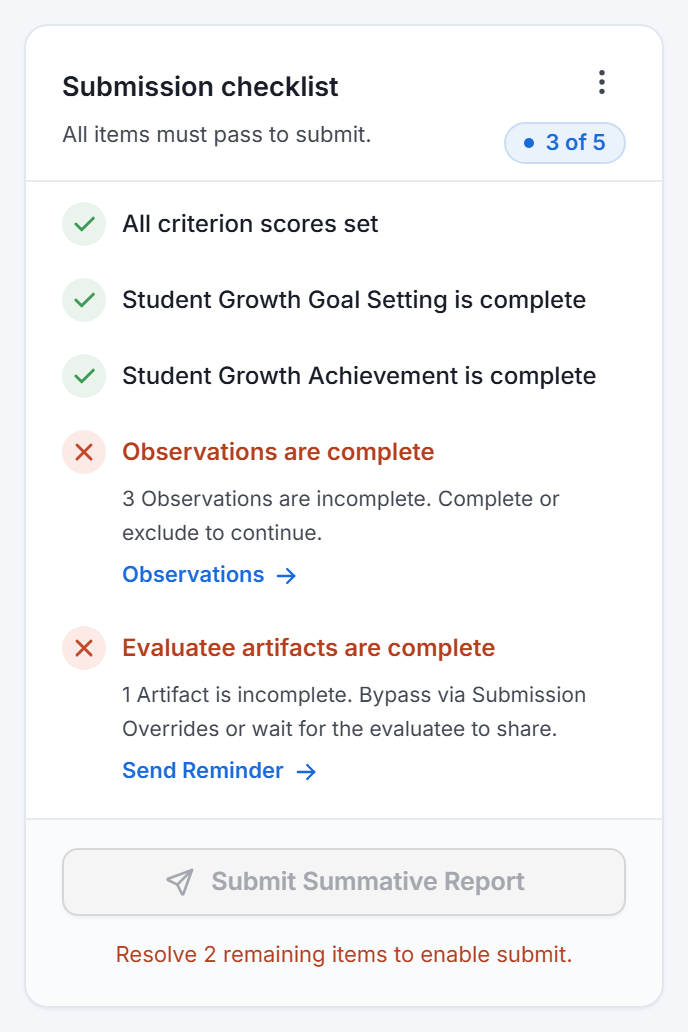
Each failing item says what is wrong and links to where you fix it — so "3 Observations are incomplete" takes you to Observations, and an unshared evaluatee artifact offers Send Reminder.
Submitting an Incomplete Summative Evaluation
Sometimes the checklist cannot be cleared. A teacher leaves mid-year, an evaluatee never shares an artifact, or a step genuinely cannot be completed. Submit Incomplete Evaluation closes the evaluation anyway — for any reason, not just a missing piece of evidence.
It skips the checks rather than satisfying them. An incomplete submission bypasses the publish validation entirely, which is what makes it powerful and why it is worth controlling.
So it is deliberately not a quiet action:
-
A comment is required. The evaluator has to say why, and the reason is stored with the evaluation rather than kept on paper somewhere.
-
A district can require approval. The setting "Require District Admin approval to submit an incomplete evaluation" is off by default:

Turned on, an evaluator who chooses Submit Incomplete Evaluation cannot submit until a District Administrator opens the report and approves it. eVAL records which DA approved, and the approval can be withdrawn again. Like completion mode, this is district-only; schools cannot override it.
While it is waiting, the checklist shows the override and its reason, and says so plainly:
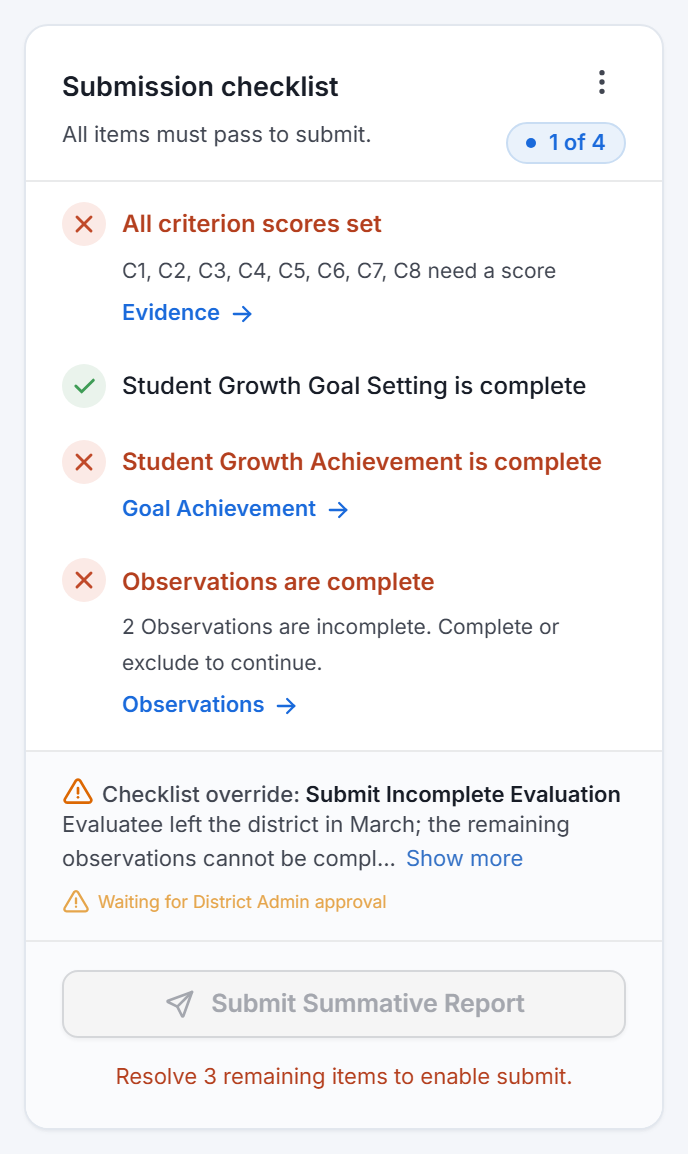
The evaluator can see exactly what they asked for and why it has not gone through yet. A District Administrator approves it from the same checklist, through Submission Overrides in the ⋮ menu.
In 2.0 the equivalent was Drop to Paper, which ended the digital evaluation and moved it outside eVAL. An incomplete submission stays in eVAL, carries its reason, and can be made subject to approval — so the evaluation is still on the record rather than off it.
Creator-Managed Workflows
Self-Assessments and Artifacts don't use completion modes. The creator manages them directly.
Self-Assessment Workflow
Self-assessments are a reflective tool for evaluatees. They are submitted when finished, shared with the evaluator if the evaluatee chooses, and unlocked for revisions.
Draft
- Evaluatee creates and edits
- The evaluator sees its title and that it is in progress, not its content
- Can link artifacts
- Can submit, sharing with the evaluator at the same time if chosen
- Can delete
Submitted
- Visible to the evaluator only if shared; otherwise the evaluator sees just its status
- Can be shared, or un-shared, from the Setup tab at any time
- Cannot be edited directly
- Can be unlocked by the evaluatee to make revisions
- Cannot be deleted (must unlock first, then delete from Draft)
Revising After Submitting
- Evaluatee unlocks the self-assessment (returns to Draft). A shared one stays shared.
- Make revisions in Draft
- Submit again
Unlike locked evidence collections, the evaluatee can unlock a self-assessment directly without requesting approval from the evaluator.
Self-assessments are for reflection and goal-setting purposes. Evidence and scores created within a self-assessment do not flow to the Summative Evaluation, even when shared.
Artifact Workflow
Artifacts have two parallel workflows - one for evaluatee artifacts and one for evaluator artifacts. Each party owns and controls their own artifacts.
For Both Tracks:
Draft
- Creator uploads files and writes description
- Private to creator
- Can share or delete
Shared
- Visible to both parties
- Evidence flows to the Summative view
- Can re-share to push minor updates
- Can be unlocked to return to Draft for more significant revisions
- Can be deleted by creator
Revising After Sharing
- Quick updates: Re-share directly from Shared state
- Significant revisions: Unlock → Draft → make changes → re-share
Artifacts offer the most flexibility for revisions. Unlike other evidence collections, the creator can unlock their own artifact without approval from the other party.
Unlocking Published Evidence
When evidence is published (locked or shared), it cannot be edited directly. To make revisions, you must unlock it first. There are two unlocking mechanisms:
Unlock Requests (Mutual Approval)
For evidence collections with locking workflows (Observations, Evaluations, Student Growth), reopening a sealed collection is not symmetric:
| Who | What they get | Approval needed? |
|---|---|---|
| The owner — the evaluator, for an observation or summative | Return to Draft | No. It reopens immediately |
| The other party | Request Unlock, with a required reason | Yes. The owner approves or declines |
An evaluator does not need permission to reopen a report they submitted. An evaluatee does, and has to say why.
How Unlock Requests Work:
- One party requests unlock
- The other party receives the request
- The other party can approve (returns to Draft), decline (stays locked), or the requester can cancel
- If approved, make edits in Draft, then re-submit to update the published evidence

Direct Unlock (Creator Control)
For evidence collections with sharing workflows (Self-Assessments, Artifacts), the creator can unlock directly without approval from the other party.
| Evidence Collection | Who Can Unlock |
|---|---|
| Self-Assessment | Evaluatee |
| Artifact | The party who created it |
This gives creators flexibility to revise their own shared evidence without waiting for approval.