Prompt Bank & Resources
Both are optional and both are best set up early. They layer differently, though: prompts reach down as far as the individual evaluator, while resources stop at the school.
- Prompts must be published before they reach anyone
- Required now means sent automatically, not sent by the evaluator
- Student Growth prompts work like all the others — any level, required or optional
- Prompts can be tagged with criteria
- Prompts carry forward each year, but as drafts — you republish
- Resources are otherwise unchanged, but evaluators and evaluatees now reach them from the account menu rather than the sidebar
How Prompts and Resources Layer
Prompts and resources both combine rather than replace (an additive pattern), following two paths down from the district:
- District → district evaluators. District evaluators see the district's items directly.
- District → School Admin → principals. A school's items layer on top of the district's, and principals see both.
- Evaluator prompts are visible only to the evaluator who created them.
A District Teacher Evaluator evaluating a teacher at Lincoln Elementary sees the district's items — not Lincoln's — even though a principal evaluating that same teacher would see both.
The same applies to a principal evaluating other principals: there is no School Admin above them in that chain — they are the school admin — so they see the district's set and their own, not a school's.
So a school-level set reaches only the evaluators based at that school, evaluating its staff. If something needs to reach everyone evaluating your staff, it has to come from the district. See Settings Inheritance.
Prompts carry one extra condition: they aren't visible below until the level that owns them publishes them.
Prompt Bank
Where: Prompt Bank
Pre-define prompts that will be available during evaluations. Best done at the start of the year, especially for prompts you want marked required.
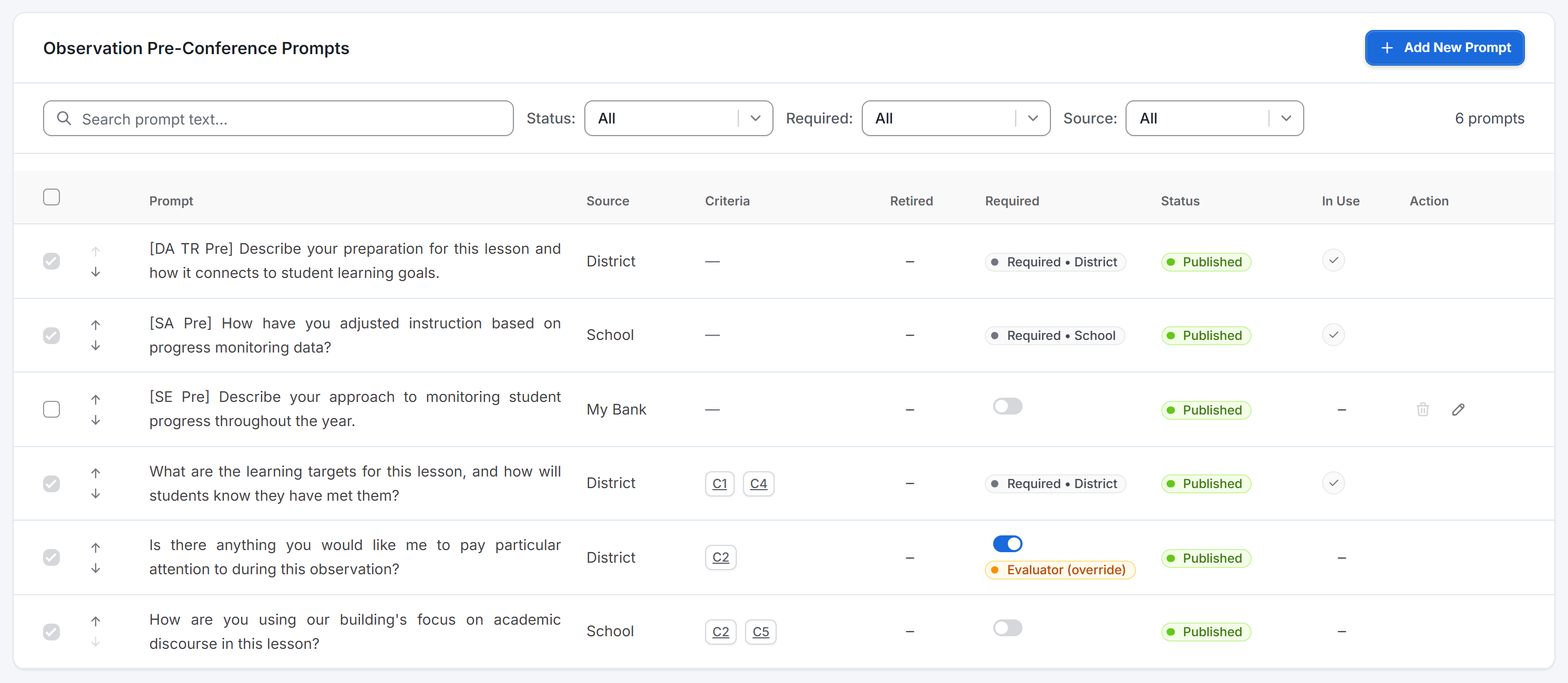
The Source column is where layering becomes visible: District and School prompts are the ones reaching you from above, My Bank holds your own.
An inherited prompt's wording is not yours to change, and you cannot retire or delete it — that belongs to whoever owns it. But its Required setting is a different matter, and that is the one control that stays live on prompts you did not write.
In Use tells you whether a prompt is already attached to an evaluation. It's worth checking before you retire something mid-year.
Requiring a prompt someone else wrote
If a prompt reaches you as optional, you can mark it required for yourself. The Required switch stays live on inherited optional prompts for exactly this reason.
| What you see in Required | What it means | Can you change it? |
|---|---|---|
| A switch, on your own prompt | Yours to set | Yes — it sets the prompt directly |
| A switch, on an inherited prompt | Inherited and optional | Yes — turning it on creates your override |
| A switch plus an amber badge, e.g. Evaluator (override) | Someone at that level required it, and it was optional where it was written | Yes, if that level is yours — turning it off drops the override and returns it to optional |
| A grey badge naming a level, no switch, e.g. Required • District | Required at that level | No. You cannot un-require it, and you cannot hide it |
The amber badge names the level that overrode it, so a School Admin can see at a glance that a district prompt is required at their school because they required it, rather than because the district did.
Why you would do this. The district writes a prompt it wants available but not mandatory, because not every school or evaluator needs it. You decide it matters for the teachers you evaluate — so you require it, and from then on it is sent automatically with your evidence collections, the same as a district-required prompt. You did not have to ask the district to change anything, and no other evaluator is affected.
How far your override reaches depends on who you are:
- An evaluator's override is private to them — their evaluatees only
- A School Admin's cascades to everyone evaluating at that school
- A District Admin's applies district-wide
The rule only runs one way: you can add a requirement at your level, never remove one set above you. That is what keeps a district's required set genuinely required.
Creating a prompt isn't enough — district prompts reach School Admins, district evaluators, and school evaluators only once they're published. Required prompts aren't attached to anything until then either.
Publish early. Until you do, schools and evaluators can't see what the district already provides, and often build their own redundant versions of prompts you've written.
Prompts also require a fresh publish each school year. Your prompts themselves do carry forward into the new year — you are not retyping anything — but they arrive as drafts, so nothing from last year is live until you publish it again. That is deliberate: it puts a decision in front of you about every prompt once a year. See Publishing Prompts.
Prompt Types
| Prompt Type | Used In | Who Creates |
|---|---|---|
| Pre-Conference | Observation pre-conference | DA, SA, Evaluator |
| Post-Conference | Observation post-conference | DA, SA, Evaluator |
| Student Growth Goal Setting | Student growth goals | DA, SA, Evaluator |
| Student Growth Achievement | End-of-year growth review | DA, SA, Evaluator |
| Summative Reflection | End-of-year summative conference | DA, SA, Evaluator |
Tagging Prompts with Criteria
While you're writing a prompt, you can tag it with the criteria it speaks to. Tags are optional, but the start of the year is the cheap moment to add them: they show beside each prompt and let evaluators filter a long bank down to the criterion they're working on. See Tagging Prompts with Criteria.
One thing to know if you tag heavily: when prompts carry forward — into a new year, or to a new school — a tag is kept only if that criterion exists in the destination framework. Tags that don't are dropped, and eVAL tells you which copies lost them so you can re-tag. In practice this only bites when the framework itself changes.
Any evaluator can create their own prompts, so a school-level set is worth doing when you want a common set shared across the school's evaluators — most useful at a large school where three or four principals evaluate teachers and want everyone working from the same questions.
If you're an evaluator
Your own prompts come last, and that's deliberate. Wait until the district — and your school, if it's adding any — has published theirs, then look at what's already available before writing your own. Anything you add is visible only to you, so a prompt you duplicate is one the district was already providing to everyone.
Once you can see the published sets, add whatever's missing for the conferences you'll be running.
If you moved schools this year, the Prompt Bank offers to bring your own prompts from last year's building across — you choose which, and they arrive as drafts to review before publishing. It's opt-in rather than automatic, so if you've already rebuilt your bank by hand you won't end up with duplicates. Nothing appears here if you stayed put, or if you evaluate at the district level rather than at a school.
Timing Considerations
Set up prompts for every stage at the start of the year:
- Student Growth Goal Setting — the first activity of the year, so these are needed earliest.
- Observations — run throughout the year.
- Summative reflection — used in spring.
Prompts can be added at any time. A prompt you mark required and publish mid-year attaches to evidence collections still in draft as well as to new ones, and reaches those evaluatees straight away — so be deliberate about publishing partway through a cycle. Collections already submitted or locked are not changed, and a prompt added after a conference has happened does not apply to it.
Resources
Resources are reference material you make available to everyone working in evaluations — framework guides, district evaluation handbooks, rubric references, professional development links.
Each resource has a title, a description, and one or more attached items. An item is either a file you upload or a website you link to, and a single resource can mix both — a handbook PDF alongside the page it came from.
Where to find them
This is the one thing that moved in 3.0:
| If you are | Resources is |
|---|---|
| A District or School Admin, setting them up | In the left sidebar |
| An evaluator or evaluatee, using them during an evaluation | In the account menu, top right |
In 2.0 the link sat in the side menu for everyone. Evaluators and evaluatees now find it in the account menu instead, alongside Rubric Reference — so if you went looking in the sidebar and concluded resources had gone away, that is where they are.
Who creates and manages them
Resources are created by District Admins for the whole district, or by School Admins for their school. Evaluators cannot create them — unlike prompts, there is no personal resource list.
Head principals usually hold School Admin as well, and it's that work area — not their evaluator one — that lets them add resources for their building.
Who can edit one follows where it was filed, not who filed it. Any District Admin can manage a district resource; the admin at a school manages that school's. A resource therefore stays manageable after the person who created it has moved on, and a district's second DA can manage it from the day it was created.
A School Admin sees the district's resources read-only — they can use them, but changing one is the district's job.
Who can see them
Like prompts, visibility depends on your own position, not the evaluatee's school:
- A district-based evaluator sees the district's resources
- A school-based evaluator sees the district's plus their own school's
So a school's resource set reaches the evaluators based there. Anything that needs to reach everyone has to come from the district.
Related
- Prompts — full reference on how prompts work in evaluations
- Settings Inheritance — what a given evaluator inherits, and why it depends on their position rather than the evaluatee's school