How to Track Observation Timelines
The Observations tab of the status dashboard can show how many days have passed between steps of each observation. For example, it can show the days from the observation to the report being sent, so school leaders can see at a glance where each observation stands, whether it's within your district's timeline, and when a report can be locked.
A district admin decides which spans to track and sets the school calendar. Everyone who sees the Observations tab sees the counts.
Set up timeline columns (District Admin)
- Open your dashboard and go to the Observations tab.
- Choose Timeline.
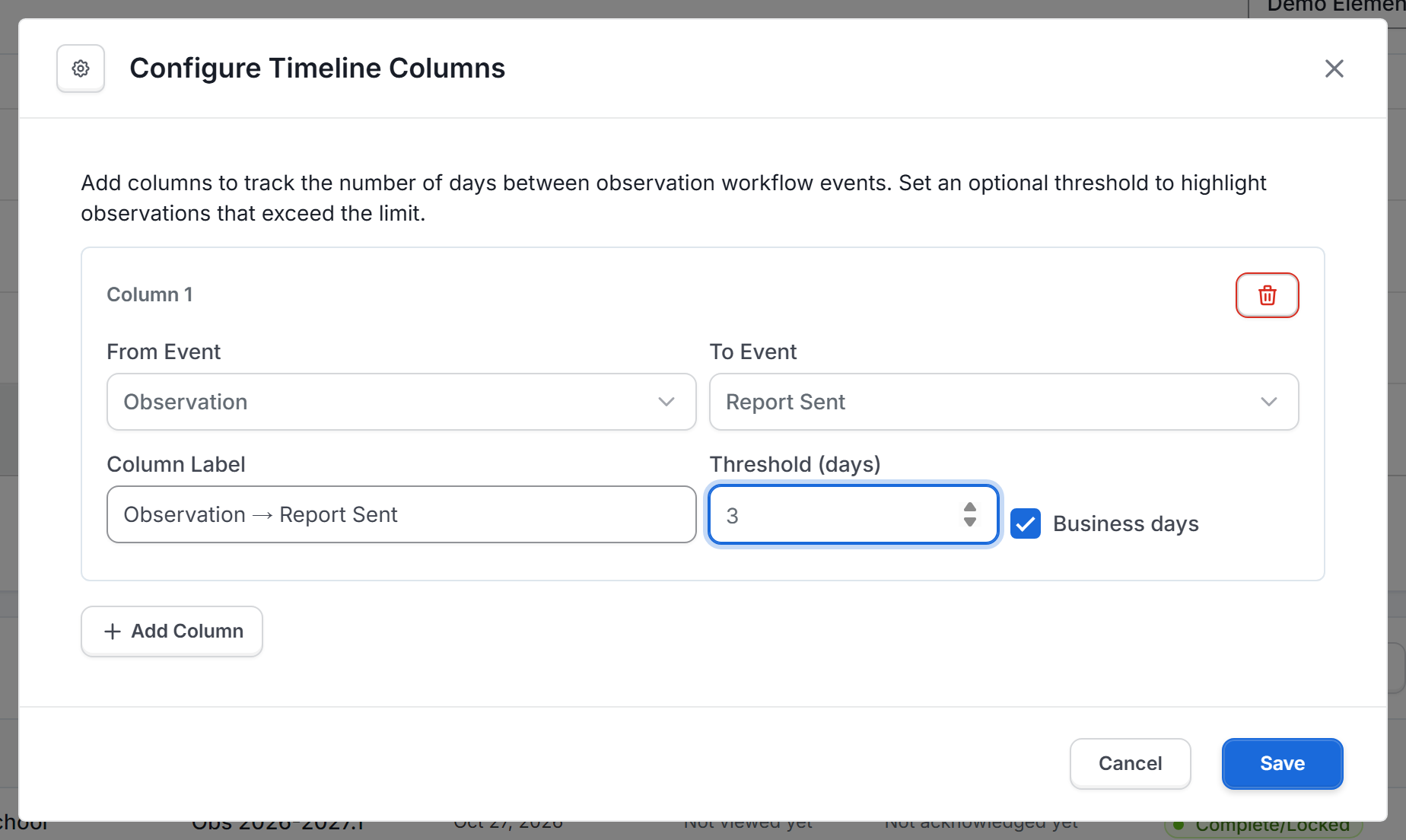
- Choose Add Column, then pick a From Event and a To Event. The column label fills in for you, and you can change it.
- Optionally, enter a Threshold (days). A count over the threshold is flagged in red.
- Leave Business days checked to count school days only, or clear it to count every calendar day.
- Add more columns if you need them, then choose Save.
You can track these spans:
| From | To |
|---|---|
| Pre-Conference | Observation |
| Observation | Post-Conference, Notes Shared, Report Sent, Complete |
| Notes Shared | Report Sent, Complete |
| Report Sent | Report Viewed, Report Acknowledged, Complete |
| Report Viewed | Report Acknowledged |
Timeline columns are set separately for each evaluation type. To track teacher and principal observations, set the columns once in each work area.
Set the school calendar (District Admin)
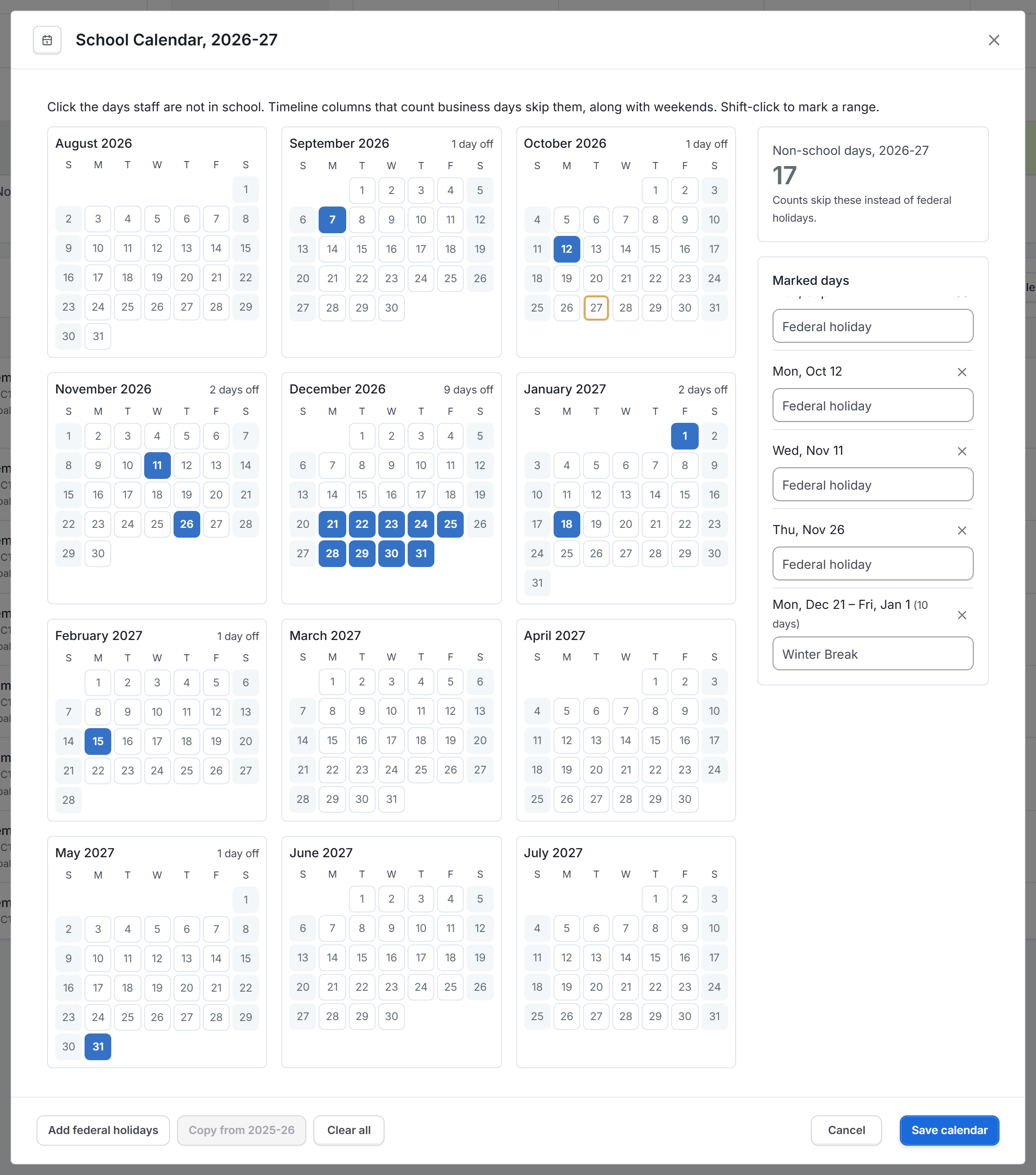
Business days always skip weekends. They also skip the days your school calendar marks as non-school days. Until you save a calendar for the year, eVAL skips US federal holidays instead.
- On the Observations tab, choose School calendar.
- Click each weekday when staff aren't in school. Click a marked day again to unmark it. To mark a break, click its first day, then Shift+click its last day; every weekday in between is marked.
- Optionally, name a run of days, such as "Winter Break", in the Marked days list. Days in a row with the same name are listed together.
- Choose Save calendar.
A few things to know:
- First time: the federal holidays start out marked, so you can begin from what eVAL already skips and adjust.
- Buttons:
- Add federal holidays marks any federal holidays that aren't marked yet.
- Copy from last year brings over last year's marked days, moved forward 52 weeks so each lands on the same weekday. Check the result against this year's calendar.
- Clear all unmarks everything.
- Scope: there is one calendar per district for each school year. It applies to every school and evaluation type.
- Saving an empty calendar removes it, and counts go back to skipping federal holidays.
Read the timeline
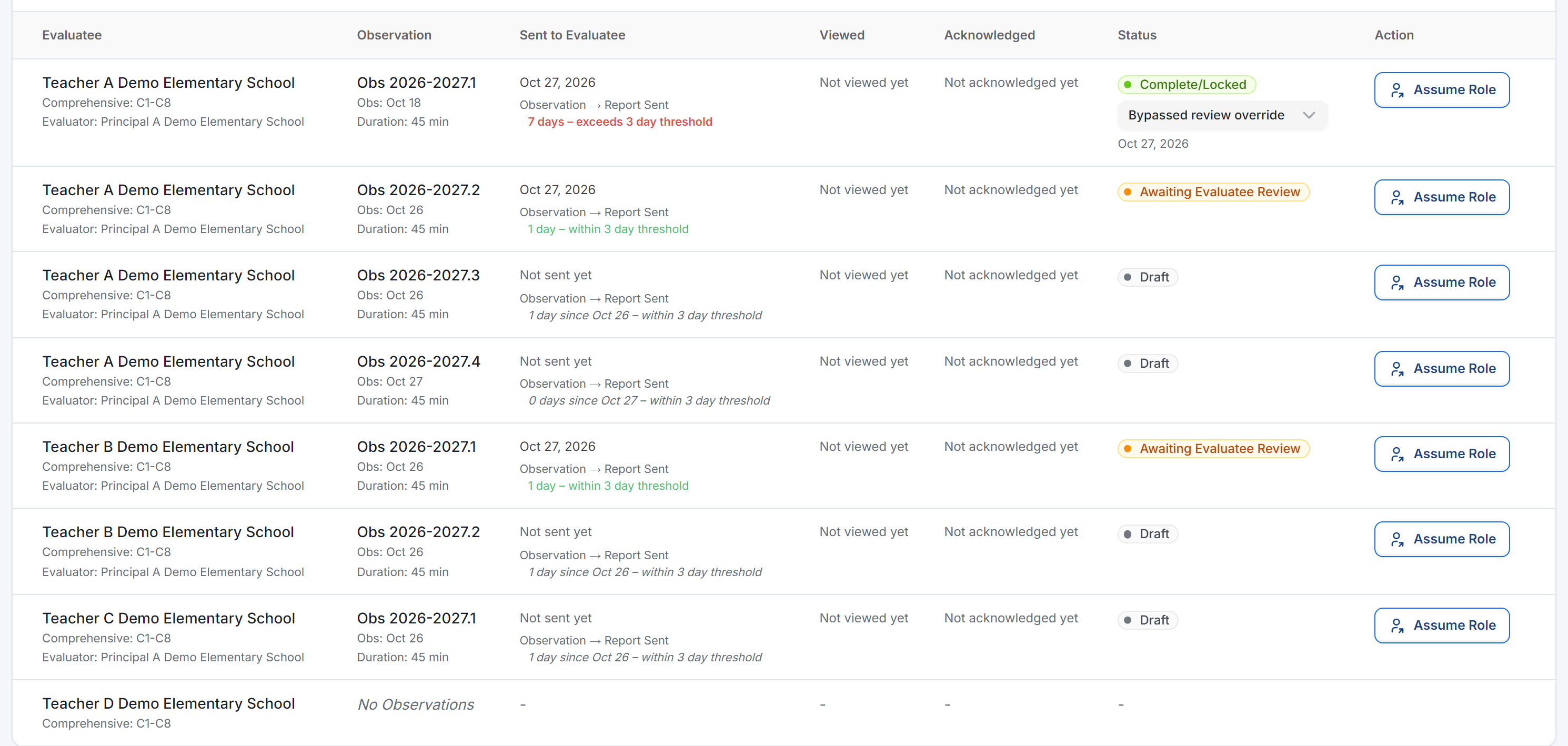
Each timeline column appears under the step it ends on. A column ending at Report Sent, Report Viewed or Report Acknowledged shows under that column; any other column shows under Status. The column's label appears first, with the count beneath it.
| What you see | What it means |
|---|---|
| 1 day – within 3 day threshold (green) | The step has happened, and it took no longer than the threshold. |
| 7 days – exceeds 3 day threshold (red) | The step has happened, and it took longer than the threshold. |
| 1 day since Oct 26 – within 3 day threshold (italic) | The step hasn't happened yet. The count shows how long it has been so far, and turns red once it passes the threshold. |
| Not sent yet, Not viewed yet, Not acknowledged yet | That step hasn't happened for this observation. |
How days are counted
- Which days count: the starting day isn't counted, and the ending day is. An observation on Thursday with the report sent the following Tuesday is 3 business days: Friday, Monday and Tuesday. Two steps on the same day count as 0.
- Business days skip weekends and your school calendar's marked days. With no calendar saved, they skip US federal holidays instead.
- Time zone: days are counted in Pacific time. A report sent at 6 PM counts on the day it was sent.