How to Self-Score an Observation
An evaluator can ask the evaluatee to score an observation themselves. The evaluatee scores the rubric against the evidence that was collected, without seeing how the evaluator scored it, and submits. The evaluator then sees both sets of scores side by side, which is a natural starting point for the post-conference.
Self-scoring is optional, and it's only offered when your district allows observation scoring (Allow Observation Scoring, under Modules & Settings). The evaluatee's self-scores are for the conversation: they never count toward the summative, and they don't appear in the observation report.
For the Evaluator
1. Request the self-score
- Open the observation while it's in Draft. Your own scoring doesn't need to be finished first.
- In the status bar, choose Request Evaluatee Self-Score.
- Optionally, add a message to the evaluatee, then choose Send Request.
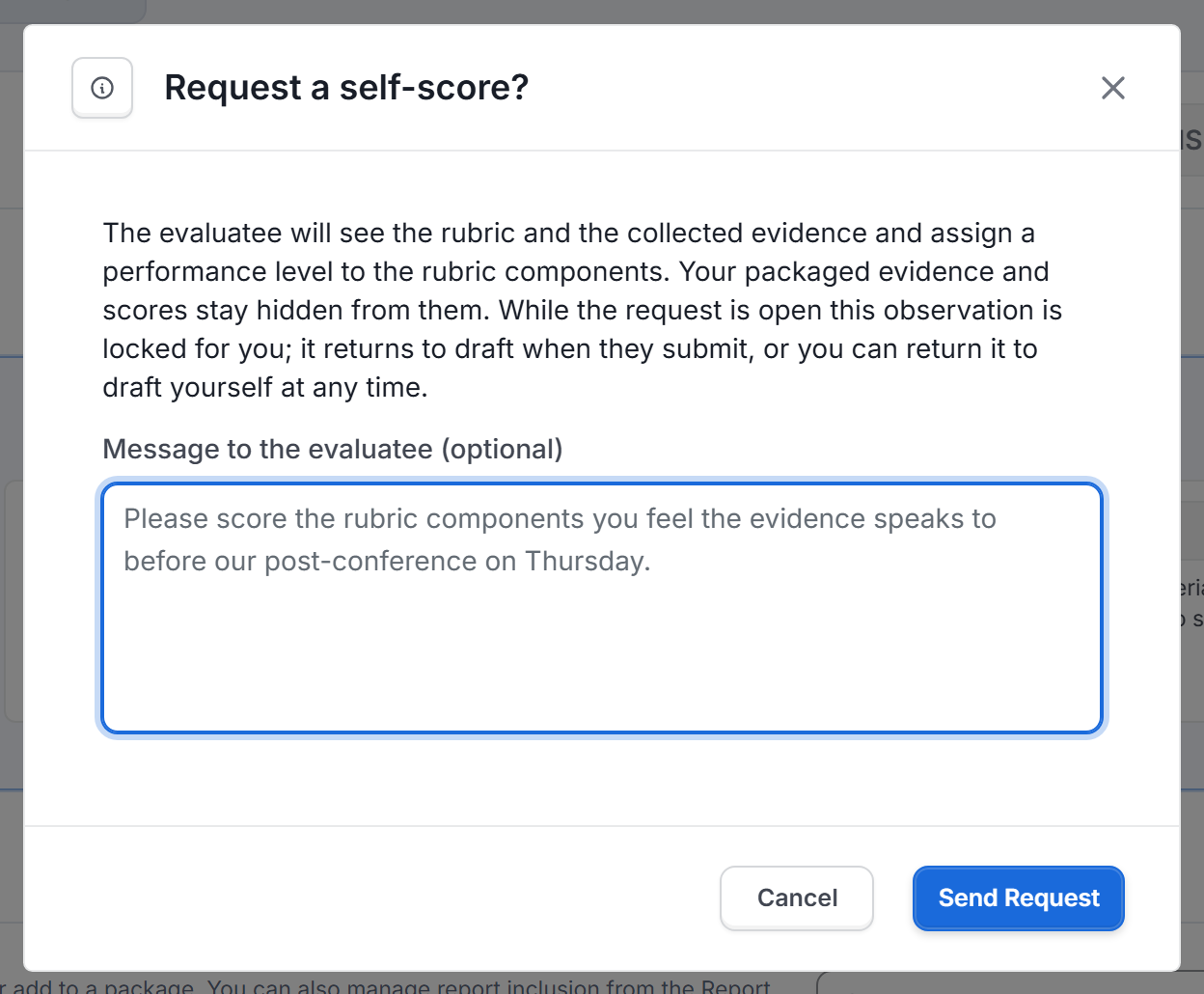
The evaluatee is notified, and the observation shows Awaiting evaluatee self-scores.
2. While it's with the evaluatee
The observation is locked for you until the evaluatee submits. You can still open it, but you can't edit it.
If you need it back before they finish, choose Return to Draft. Any scores they've entered so far are kept but stay hidden from you. They come back pre-filled for the evaluatee if you request a self-score again.
3. Compare the scores
When the evaluatee submits, the observation returns to Draft and their scores appear in your Evidence View alongside yours. Each scored level is colored by who chose it:
| Color | Meaning |
|---|---|
| Navy | Your score |
| Gold | The evaluatee's score |
| Teal | You both chose the same level |
A key below each rubric component's levels names the colors. The criterion score buttons are colored the same way.

From here, carry on as normal. You can adjust your own scores, request another self-score, or send the final report.
For the Evaluatee
1. Find the request
When your evaluator asks for your self-score, you're notified, and it appears in Needs Your Action on your dashboard as Awaiting your self-score. Select it to go straight to the observation's Evidence View.

2. Score the rubric
The Evidence View shows the rubric and all the evidence collected for the observation, read-only. Your evaluator's scores and evidence packages are not shown while you score, even if they shared the Evidence View with you earlier, so your self-score is your own.
For each rubric component, choose the performance level that you think fits the evidence. Your scores save as you go, and nothing is shared until you submit. You don't have to score every component.

3. Submit
When you're done, choose Submit Self-Scores in the status bar and confirm. Your evaluator can now see your scores beside theirs, and components you didn't score stay blank.
After you submit, you can't change your scores unless your evaluator requests a self-score again. If your evaluator shares the Evidence View with you, you'll see both sets of scores, colored the same way the evaluator sees them.